Keybindings
Korvid shows only the keys that act on the current view. Press ? for the complete effective set, including remaps; press ~ to expand the top-bar legend.
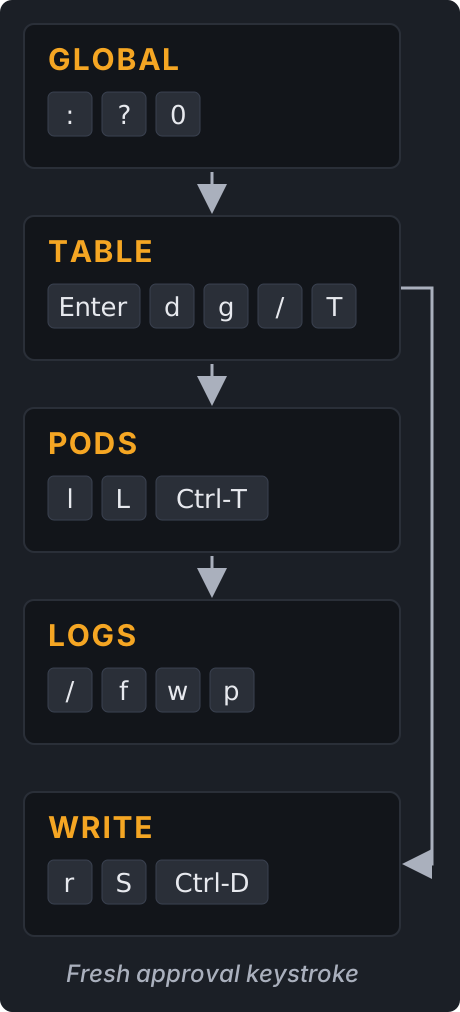
Move and inspect
| Key | What it does |
|---|---|
: |
Open the command bar |
:pulse / :problems |
Inspect current problems, recent warnings, and coverage |
:outcomes / :deployment-outcomes |
Open the latest bounded Deployment scale/restart outcome |
Ctrl-P |
Search app actions and built-in commands by intent |
:keys / :keybindings |
Edit, review, and save app keybindings |
:slots / :ns-slots |
Preview and repack the 1–9 namespace shortcuts |
? |
Show the effective keys for every view |
~ |
Expand or collapse the top-bar legend |
/ |
Filter a table or search the log pane |
Enter / Esc |
Drill in / return one level |
0 |
Toggle all namespaces |
1–9 |
Jump to a namespace shortcut: pinned favorites first, then the namespaces you visit, in first-visit order |
d |
Describe the selected resource |
g |
Open operational relationships |
T |
Open the bounded session timeline |
l / L |
Open selected or merged pod logs |
Ctrl-T |
Transfer files to or from the selected pod |
Ctrl-W v/w/q |
Split, focus, or close a workspace pane |
Ctrl-A / Ctrl-X |
Toggle the Agent / stop its current turn |
q |
Quit |
Ctrl-P opens the Action Palette: type what you want to do — scale, logs,
context — and korvid ranks the app actions and the built-in : commands
against it. Canonical spellings match exactly too: an action's own id
(delete_resource, logs_multi), a command's text (pulse, ai), and its
: form (:pulse, :agent). Each row reads category · what it does · how
to run it — the key that action currently answers to, remaps included, or
the command's canonical : spelling.
Resource views (:pods, :deploy) are not rows: they come from the live alias
table, so : stays the way to open one. :q is not a row either — the bound
Quit action is its single entry. The 1-9 namespace shortcuts are
not rows either — they take a number the palette has no generic way to invoke,
so ? documents them and :ns/the numeric keys stay the route. An action
that does not apply to the current view — or that applies but would currently
do nothing, because nothing is selected, the row carries no hint, no search
is running, the view does not render the column a sort key sorts by, the log
pane is already full, or this session was started without the capability it
needs — stays searchable
and shows the reason instead of vanishing, so
the palette also answers "why did that key do nothing?". A command row answers
for what its own handler needs: :ai needs the model catalog its setup wizard
is driven from, and :model needs a connected agent to report, so a session
can offer one and grey out the other. A row is about the bare command it runs,
so a greyed-out :ai row does not stop you typing :ai off. korvid looks for
kubectl once, when the session starts, and the shell and port-forward rows
report that one answer — install kubectl while korvid is running and it is
picked up at the next start.
A reason is written
to fit a row on a narrow terminal, so where the key's own toast names a
resource (the node a running drain is evicting, the node cordon is waiting
on, the pod that would not fit the log pane) the row states the fact and the
toast keeps the name. Such a row is greyed but not skipped: the arrow, Page
and Home/End keys put the cursor on it like any other row so the reason can
be read, and clicking it does the same. It still cannot run — Enter and a
click on it dispatch nothing and leave the palette open. Esc closes the
palette, and so does Ctrl-P, which the modal binds as a close key of its
own.
Selecting a write action opens the same approval dialog the key opens, which
still needs its own fresh keystroke.
Act in context
| Context | Keys |
|---|---|
| Pods | l logs · s shell · Shift-F port-forward |
| Deployments / StatefulSets | r restart · S scale |
| DaemonSets | r restart |
| ReplicaSets | S scale |
| Nodes | c cordon · u uncordon · Shift-D drain |
| Helm releases | i install · u upgrade · h revisions |
| Helm revisions | r rollback |
Only Deployment scale and restart start a convergence tracker. After user
approval, a successful write first records that the API accepted the request;
:outcomes shows the separately observed controller result. In that modal, Enter, e,
d, and l act on an evidence Pod only when its UID still matches; r
reopens the latest snapshot, x stops observation, and Esc closes without
stopping it.
Remap an app action
Type :keys (or :keybindings), or select Edit keybindings in the
Action Palette. Search for an action and select it with Tab/Enter. The
editor shows its scope, default keys, current keys, and proposed keys.
| Editor key | What it does |
|---|---|
F1 / F2 |
Focus action search / replacement-key input |
Enter in the key input |
Stage the typed key name, such as ctrl+g or shift+g |
F3 |
Stage a deterministic suggestion, when a complete valid proposal is available |
F4 |
Select a conflicting owner to continue resolving the chain |
F5 |
Swap with the conflicting owner, only if the complete result is valid |
F6 |
Undo the last staged change |
F7 / F8 |
Stage a reset of the selected action / all keybindings |
F9 |
Review every pending change |
F10 |
Apply the reviewed proposal explicitly |
Esc |
Cancel without saving or changing the live keymap |
The editor keeps one session open while you resolve conflicts. Move each conflicting owner to another key, use a valid swap, or undo and try a different route. Two-way swaps and longer rotations are supported; unresolved conflicts block Apply. A suggestion is not offered if other pending conflicts would still leave the complete map invalid. Editing after Review invalidates it: review again before Apply. Enter stages a key; it never applies the map.
Only a successful save activates the new keymap. Dispatch, Help (?), the
top-bar legend, and the Action Palette then use the same effective keys,
including after restart. If saving fails, the editor remains open and the
previous live bindings and saved configuration remain unchanged.
Resetting an action removes its override. If its default is occupied by
another pending override, resolve that conflict before applying. Reset All is
also staged and requires Review followed by Apply. It removes only the
keybindings section: unrelated settings, favorite_namespaces, and any
separately saved namespace-assignment state are preserved. Namespace slots
1–9 remain reserved; the all-namespaces action on 0 remains remappable.
Reset All also stages removal of saved overrides rejected at startup, even
when no custom bindings are active. That cleanup appears in the preview,
can be undone or cancelled, and is saved only after Review and Apply.
A malformed section such as keybindings: true also warns, uses defaults,
and can be removed through this staged reset.
You can also edit the keybindings section of the shared configuration directly:
Startup and the editor use the same context-aware validation. Actions in
mutually exclusive resource views can share a key, but global or pane actions
that can run together cannot. Equivalent spellings such as shift+g and G
refer to the same physical key. Unknown, invalid, duplicate, or shadowing
overrides warn and are skipped at startup; an invalid editor proposal cannot
be applied. Unicode key names must match the terminal's emitted spelling:
use a, for example, rather than the unsupported latin_small_letter_a.
For uppercase letters combined with Ctrl, Alt, or another modifier, use an explicit
Shift modifier and lowercase base: alt+shift+a, not alt+A. Ambiguous spellings are
rejected rather than guessed across terminal protocols. Unmodified A and
the existing ASCII shift+a/shift+A aliases remain supported.
For Shift-only text, use the emitted character or its key name: ? or
question_mark, not shift+slash. Shift-only punctuation, digit, space, and
non-ASCII text spellings are rejected instead of guessing a keyboard layout.
Shift with navigation or function keys remains supported. Combinations involving
Ctrl/Alt or other modifiers retain their distinct terminal identities and may
require enhanced keyboard-protocol support.
Fixed navigation, pane-chord, and namespace keys are reserved. The approval
dialogs' actions and confirm keys are not remappable: every write still
requires a fixed fresh keystroke. Priority overrides cannot intercept approval
controls, including Ctrl-N to decline, editor controls, or any other modal's
fixed keys. Remapping Quit away from q does not free it for a priority action:
it still closes Help and Describe. Global priority actions also cannot take
printable keys, including Shift-only letters, punctuation, spaces, and Unicode:
those keys must remain available to text inputs and typed approval gates.
Use an available Ctrl/Alt combination or function key instead. This restriction
does not apply to normal actions or the main-screen-only command-bar shortcut.
The editor cannot open over a dialog or during a context switch. The palette's
own key moves under
open_action_palette, but its fixed
Esc and Ctrl-P keys close the palette whichever key opened it;
another priority action cannot take them.
Action names come from the app itself.
An unrecognised name is skipped at startup with a warning that lists every valid action name.
Press ? for the complete effective set.